


TL;DR: The fastest way to create a text file on Mac is to open Terminal and run touch filename.txt. If you want the beginner-friendly method, use TextEdit and switch it to plain text with Format → Make Plain Text. If you want a Windows-style right-click option in Finder, create an Automator Quick Action once and use it whenever you need a new .txt file.
This is one of those tiny macOS things that annoys almost every Windows user at least once.
On Windows, you right-click inside a folder, choose New → Text Document, and your file is ready.
On macOS, Finder does not give you a simple built-in New Text File button. You can create folders easily, but not blank .txt files from the right-click menu.
That feels strange at first.
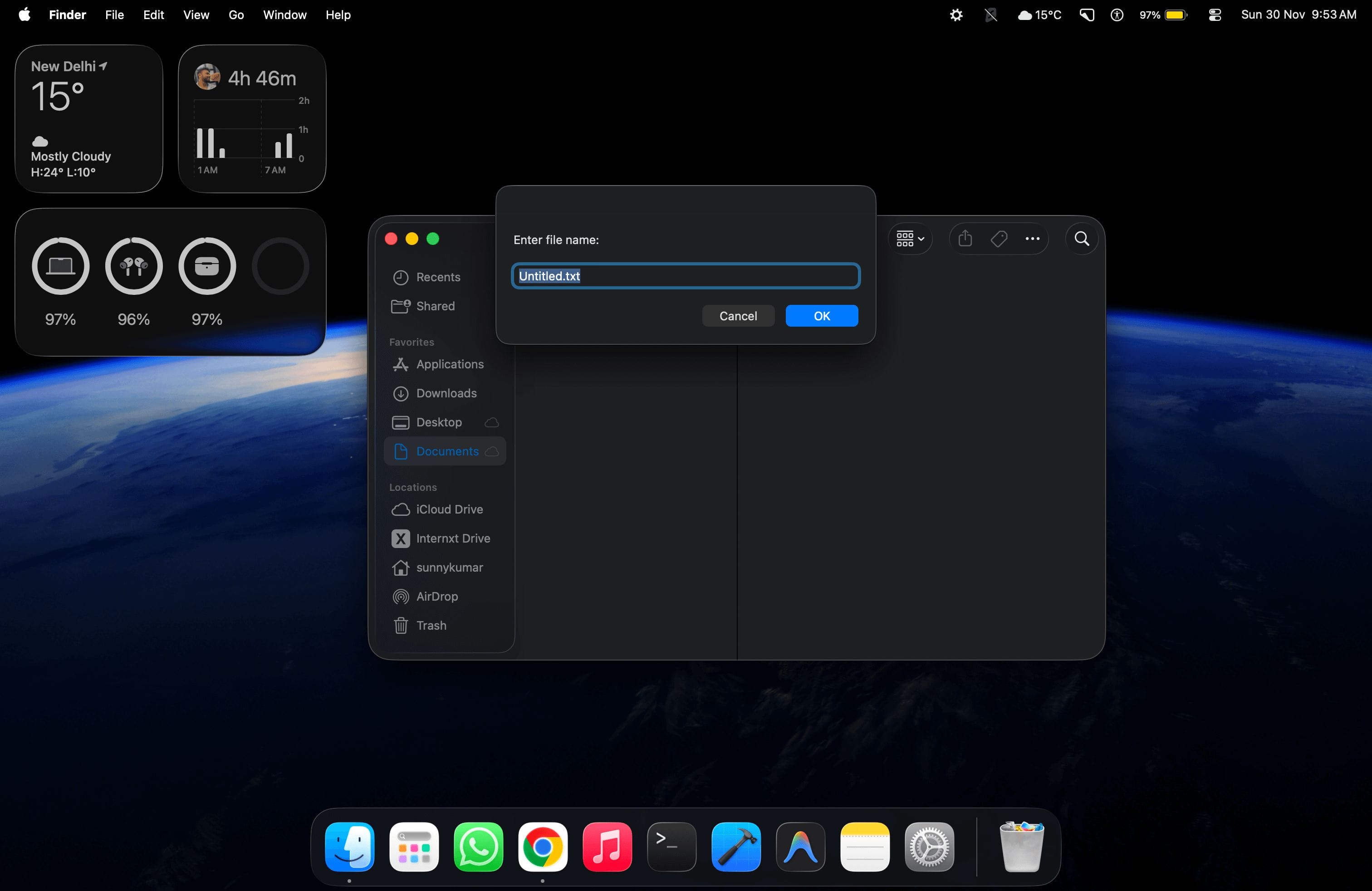
The good news is that you still have multiple reliable options. Some are simple. Some are faster. Some give you the exact Finder right-click workflow you probably wanted in the first place.
Here are the six methods I would actually use in 2026.
Quick note: I tested this around the normal macOS Finder/TextEdit/Terminal workflow. Menu names can vary slightly between macOS versions, but the core methods still work.
Why does Mac not have a New Text File option in Finder?
Short answer: macOS expects you to create a document from an app first, then save it as a file.
Apple’s workflow is different from Windows. Instead of creating an empty file first, macOS usually expects you to open an app like TextEdit, write something, and then save the document wherever you want.
That is fine for normal writing.
But it becomes annoying when you are a developer, blogger, SEO person, or power user who just wants to create files like:
notes.txtREADME.mdrobots.txt.env.exampleconfig.json
For that kind of work, opening an app and using Save As every time feels slow.
So the right method depends on what you want: a one-time text file, a fast developer workflow, or a permanent right-click option in Finder.
Method 1: Create a text file with TextEdit
Short answer: use TextEdit if you are a beginner and want the official built-in Mac app.
TextEdit is Apple’s built-in text editor. Apple’s own TextEdit guide says it can create and edit plain text, rich text, and HTML documents.
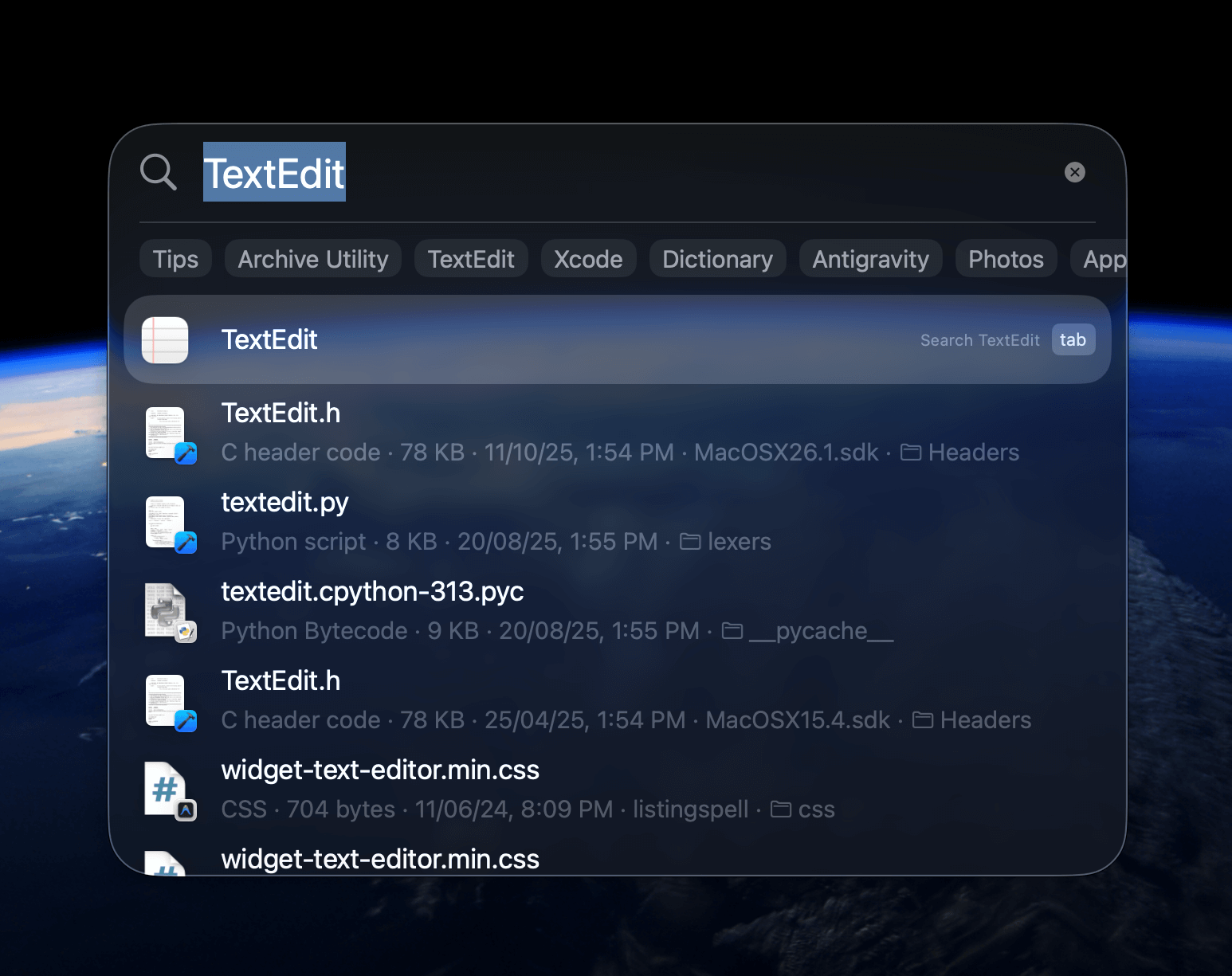
Here is the simple way:
- Press Command + Space to open Spotlight.
- Type TextEdit and press Enter.
- Create a new document if TextEdit does not open one automatically.
- Click Format → Make Plain Text.
- Type your content.
- Press Command + S.
- Name the file with a
.txtextension, likenotes.txt. - Choose the folder and click Save.
The important step is Make Plain Text.
If you skip that, TextEdit may save the file as a rich text document instead of a clean plain text file. That is fine for formatted notes, but not ideal for code snippets, config files, or simple .txt files.
Make TextEdit open in plain text by default
If you create text files often, change the default setting once:
- Open TextEdit.
- Click TextEdit → Settings.
- Open the New Document tab.
- Under Format, choose Plain text.
- Close Settings.
Now TextEdit behaves much closer to Notepad for new documents.
My take: Use TextEdit if you only create text files sometimes. If you create files every day, the Terminal or Automator methods are faster.
Method 2: Create a text file with Terminal
Short answer: use Terminal and run touch filename.txt. This is the fastest method once you are comfortable with folders and commands.
Apple’s Terminal guide describes Terminal as the command-line app for macOS. For creating blank files, it is perfect.

To create a text file on your Desktop:
cd ~/Desktop
touch notes.txt
That creates an empty file called notes.txt on your Desktop.
To create one inside Documents:
cd ~/Documents
touch ideas.txt
To create multiple files at once:
touch file1.txt file2.txt file3.txtTo create files with different extensions:
touch README.md robots.txt notes.txtThis is the method I use most for developer-type files.
If you are working on WordPress, servers, or small scripts, Terminal quickly becomes more useful than Finder. I use similar command-line habits in guides like fixing WordPress files downloading instead of opening, where file paths and server behaviour matter.
Create a text file with content using echo
If you want to create the file and write one line immediately, use echo:
echo "This is my first line" > notes.txtTo append another line without replacing the file:
echo "This is another line" >> notes.txtBe careful here. A single > overwrites the file. Double >> appends to it.
Create and edit a text file with nano
If you want to create and edit the file directly in Terminal, use nano:
nano notes.txtType your content, then press Control + O to write the file, Enter to confirm, and Control + X to exit.
Method 3: Add New Text File to Finder with Automator
Short answer: create an Automator Quick Action if you want a Windows-style right-click option in Finder.
This is the best method if you frequently create text files inside Finder folders.
Apple’s Automator guide says Quick Actions can appear in Finder and the Services menu after you create them. That is exactly what we need.
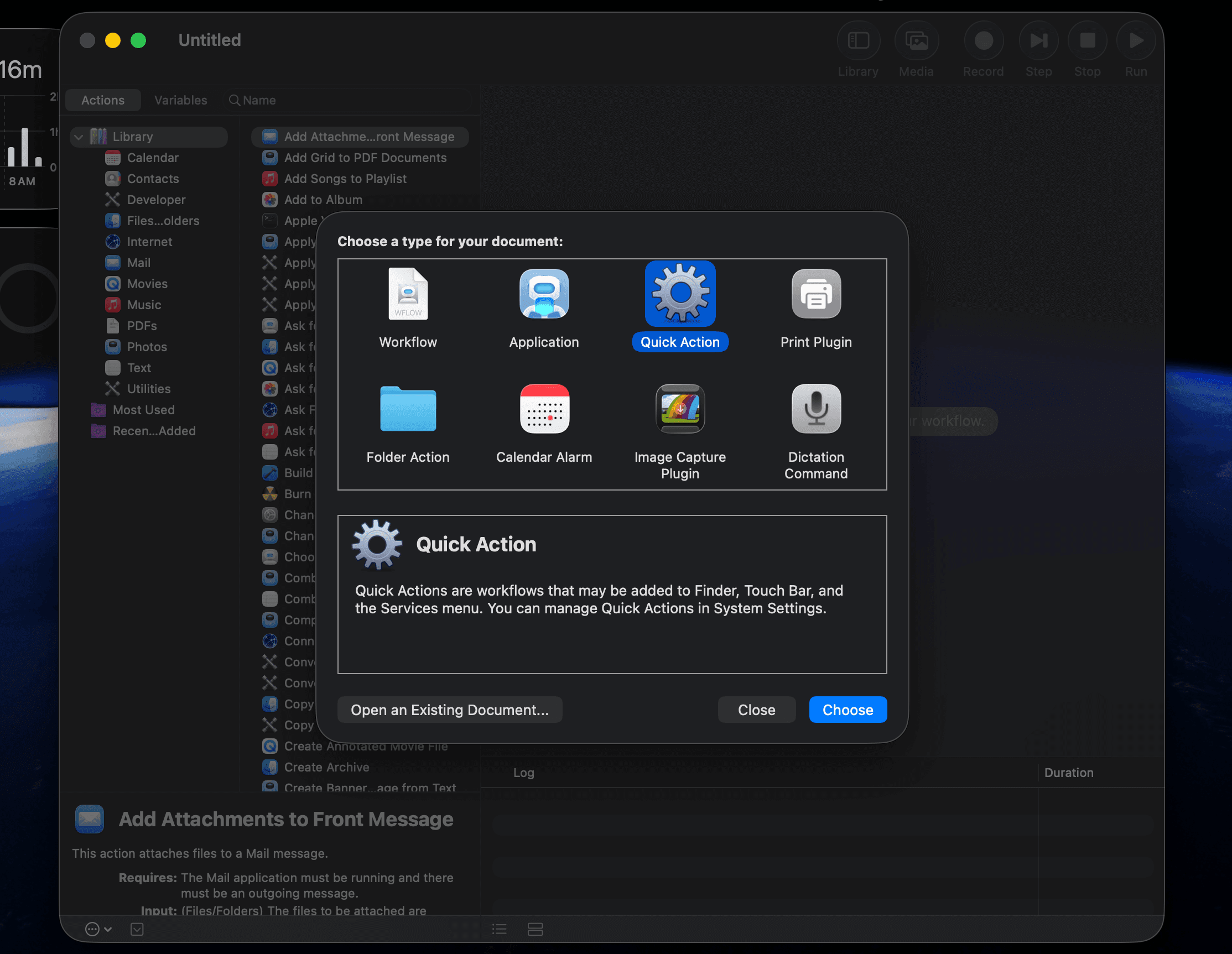
Here is how to set it up:
- Open Automator from Spotlight.
- Choose Quick Action.
- Set Workflow receives current to no input.
- Set in to Finder.
- Search for Run AppleScript.
- Drag Run AppleScript into the workflow area.
- Replace the default script with the script below.
- Save it as New Text File.
tell application "Finder"
    if (count of Finder windows) is 0 then
        set currentFolder to desktop as alias
    else
        set currentFolder to (target of front Finder window) as alias
    end if

    set fileName to text returned of (display dialog "Enter file name:" default answer "Untitled.txt")

    if fileName does not end with ".txt" then
        set fileName to fileName & ".txt"
    end if

    make new file at currentFolder with properties {name:fileName}
end tell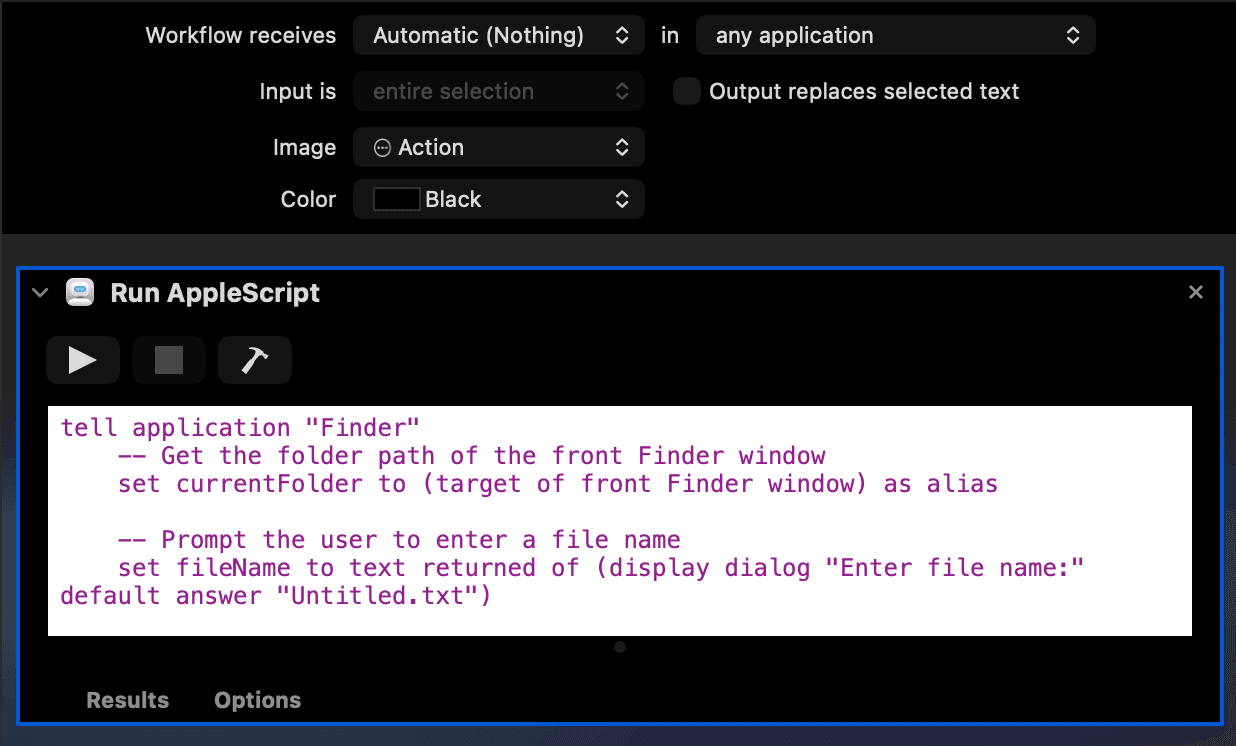
After saving it, open Finder, right-click inside a folder, and look under Quick Actions or Services. You should see New Text File.
If it does not appear, open System Settings → Keyboard → Keyboard Shortcuts → Services and make sure the Quick Action is enabled.
Add a keyboard shortcut to the Automator action
You can also assign a shortcut:
- Open System Settings.
- Go to Keyboard → Keyboard Shortcuts.
- Open Services.
- Find your New Text File action.
- Add a shortcut like Control + Command + N.
This gives you the closest thing to Windows’ right-click new file workflow.
Method 4: Use Shortcuts for a reusable New Text File action
Short answer: use Shortcuts if you prefer Apple’s newer automation app over Automator.
Automator still works, but Apple has been pushing Shortcuts more across macOS. For simple personal workflows, Shortcuts is easier to understand.
A basic shortcut idea looks like this:
- Open the Shortcuts app.
- Create a new shortcut called New Text File.
- Ask for text input for the file name.
- Use a blank text action or text block.
- Save the file to your chosen folder.
- Enable it from the menu bar, Services menu, or a keyboard shortcut if needed.
I still prefer Automator for Finder-specific right-click file creation because it is more direct. But if you already use Shortcuts for other Mac automations, this is worth setting up.
For repeatable developer workflows, Terminal is still faster. For user-friendly automation, Shortcuts is cleaner.
Method 5: Use a code editor like VS Code, BBEdit, or Sublime Text
Short answer: use a real text/code editor if you create .txt, .md, .json, .html, or config files regularly.
TextEdit is fine for basic notes. But if you work with code, Markdown, SEO files, server configs, or documentation, a code editor is usually better.
Good options include:
- VS Code – best free all-rounder for developers and writers who work with code.
- BBEdit – classic Mac text editor with strong plain-text workflows.
- Sublime Text – fast, lightweight, and good for plain text and code.
The workflow is simple:
- Open the editor.
- Create a new file.
- Save it as
filename.txt.
This method is especially useful if your text file is not really a normal note, but a technical file. For example, if you are writing a README, a script note, or a small JSON file for a tool.
If you are learning more practical scripting, my Python QR code guide is a good example of why plain text files and code editors matter. Scripts, config files, and notes are much easier to manage in a real editor than in TextEdit.
Method 6: Use a Finder app that adds New File to right-click
Short answer: use a third-party app only if you want convenience and do not want to build Automator actions yourself.
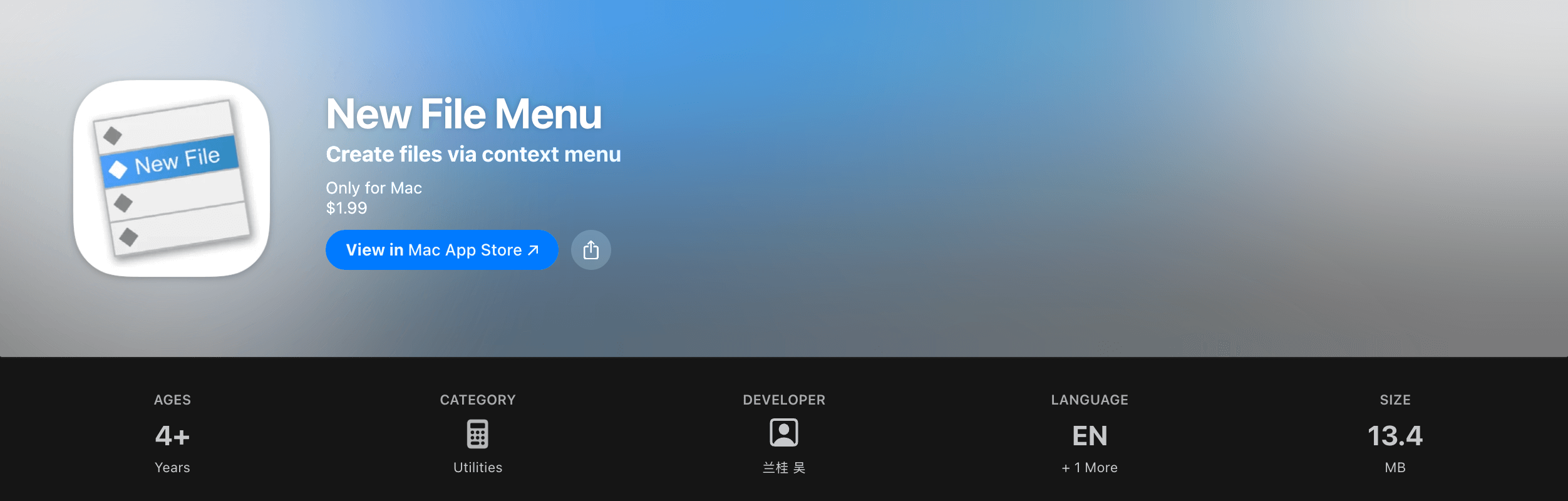
Apps like New File Menu add a Windows-style new file option to Finder. This is the simplest option if you do not want to touch Automator, AppleScript, or Terminal.
The usual flow is:
- Install the app from the Mac App Store or official source.
- Grant the required Finder permissions.
- Right-click inside Finder.
- Choose the text file template.
I do not install Finder extensions lightly because they need extra permissions and can change system behaviour. If you only need this once in a while, use TextEdit or Terminal.
If you create new files all day and want the cleanest Finder workflow, a dedicated app can be worth it.

Which method should you use?
Short answer: use TextEdit for simple notes, Terminal for speed, and Automator if you want right-click file creation in Finder.
| Method | Best for | My recommendation |
|---|---|---|
| TextEdit | Beginners and occasional notes | Best built-in beginner method. |
Terminal touch | Developers and power users | Fastest once you know the folder path. |
| Automator Quick Action | Finder right-click workflow | Best long-term setup for Windows switchers. |
| Shortcuts | Apple automation users | Good if you already use Shortcuts. |
| Code editor | Markdown, JSON, code, configs | Best for technical files. |
| Third-party Finder app | Convenience without setup | Use only if you are comfortable granting permissions. |
My personal setup is simple.
I use Terminal for quick files, VS Code for actual writing/code files, and Automator if I want a Finder right-click workflow on a Mac I use regularly.
TextEdit is fine, but I do not rely on it for technical files.
Common mistakes when creating text files on Mac
Short answer: most problems come from rich text, missing extensions, or unsafe Terminal filenames.
1. Saving rich text instead of plain text
If TextEdit saves .rtf instead of .txt, you probably forgot Format → Make Plain Text.
Fix it by switching TextEdit’s default format to plain text in Settings.
2. Forgetting the file extension
This creates a file with no extension:
touch notesThis creates a normal text file:
touch notes.txtBoth can be plain text, but the .txt extension makes the file easier to recognise and open correctly.
3. Using spaces in Terminal without quotes
This creates two files:
touch my file.txtUse quotes instead:
touch "my file.txt"Or avoid spaces in technical file names. I usually prefer my-file.txt or my_file.txt.
4. Running Terminal commands in the wrong folder
Before creating the file, check your current folder:
pwdList files in the folder:
lsThen run touch. This prevents the classic “where did my file go?” problem.
Quick FAQ
How do I create a .txt file on Mac?
The easiest built-in way is TextEdit. Open TextEdit, choose Format → Make Plain Text, type your content, and save the file with a .txt extension. The fastest way is Terminal: run touch filename.txt.
Can I create a text file from Finder on Mac?
Finder does not include a built-in Windows-style New Text File option. You can add one with an Automator Quick Action, a Shortcut, or a third-party Finder extension like New File Menu.
What is the fastest way to create a blank text file on Mac?
Terminal is fastest. Open Terminal, go to the folder with cd, and run touch notes.txt. This creates a blank text file immediately.
Why does TextEdit save as RTF instead of TXT?
TextEdit can create rich text documents by default. Choose Format → Make Plain Text before saving, or set TextEdit to plain text by default from TextEdit → Settings → New Document.
How do I create a text file with today’s date in the name?
Use Terminal: touch "notes-$(date +%Y-%m-%d).txt". This creates a file like notes-2026-05-26.txt using the current date.
Should I use TextEdit or VS Code for text files?
Use TextEdit for simple notes. Use VS Code, BBEdit, or Sublime Text if you work with code, Markdown, JSON, scripts, config files, or multiple project folders.
Summing Up!
Creating a text file on Mac is not as obvious as Windows, but it is not difficult once you pick the right workflow.
If you are new to Mac, use TextEdit and switch it to plain text. If you are comfortable with commands, use touch filename.txt in Terminal. If you miss the Windows right-click menu, build the Automator Quick Action once and keep using it.
My final recommendation is simple: TextEdit for beginners, Terminal for speed, Automator for Finder convenience, and VS Code or BBEdit for technical files.
Which method are you using on your Mac: TextEdit, Terminal, Automator, or a third-party app? Tell me in the comments.